Whether you’re selling fitness plans, educational courses, or exclusive video content, it’s essential to protect your work from unauthorized distribution. One of the most common ways content gets stolen is through screen recording. With just a few clicks, anyone can capture your premium video content and share it without permission.
But don’t worry, there are effective ways to block screen recording on hosted videos and prevent unauthorized distribution of your content.
Here’s how you can stop screen recording and secure your videos.
Why Screen Recording Is a Risk for Creators
Screen recording is a growing problem for fitness creators, course creators, and other small businesses using videos as their primary content. Here’s why:
- Easy Access: Many tools or apps (like OBS Studio, Camtasia, and built-in screen recorders) make it simple to record your content.
- Loss of Revenue: Pirated videos, once recorded, can be shared freely, leading to lost income and subscribers.
- Damage to Brand Integrity: When someone re-uploads or shares your content without permission, it undermines your brand’s value and can confuse or frustrate your audience.
So, the question is: How can you stop screen recording on your videos?
Let’s explore practical solutions.
Need Netflix-level protection for your videos?
Protect premium content with DRM, dynamic watermarks, and access controls built to make screen recording and content theft much harder.
Why YouTube Can't Block Screen Recording (and Netflix Can)
YouTube does not block or detect screen recording on regular videos. Recording happens locally on the viewer's device, so YouTube's servers never see it and creators are never notified. The only YouTube content that resists capture is DRM-protected material like movie rentals and YouTube TV, which can force a black screen on some devices.
Netflix, Amazon Prime Video, and Apple TV+ behave differently because every stream is wrapped in DRM. The video is decrypted inside a protected hardware path on the viewer's device, so when a screen recorder asks the operating system for those pixels, it gets a black rectangle instead. On devices without that hardware path, these services degrade the stream instead of blocking playback; Netflix, for example, documents the maximum playback resolution for each browser.
If a viewer ever sees the message "screen recording is not allowed when protected content is visible," that is DRM working as designed: the operating system is refusing to hand decrypted frames to the capture tool.
The takeaway for your own hosted videos is simple. You get Netflix-style blocking only when your platform delivers hardware-backed DRM (Widevine L1 and FairPlay), and you cover the remaining desktop gap with viewer-specific watermarks.
How Platforms Like OnlyFans Handle Screen Recording
OnlyFans does not technically block screen recording or screenshots. Content plays in a standard browser without hardware DRM, so capture tools work, and the platform does not notify creators when it happens. Its protection is legal and forensic instead: watermarked media, DMCA takedown teams, and bans for leaking accounts.
Independent creators selling exclusive video can go further than the big membership platforms do by hosting on infrastructure with multi-DRM and per-viewer dynamic watermarks, so any leaked copy points back to a specific subscriber.
What Happens When Someone Tries to Record, Device by Device
Protection is decided by the viewer's device, not by a single on/off switch. Here is what a capture attempt actually gets when your video is delivered with DRM and dynamic watermarking:
| Viewer's device | DRM in play | What a screen recorder captures | What protects you here |
|---|---|---|---|
| iPhone and iPad (Safari or native app) | FairPlay, hardware | Black screen | DRM blocks the capture outright |
| Android phone or tablet with hardware DRM | Widevine L1 | Black screen | DRM blocks the capture outright |
| Android device limited to software DRM | Widevine L3 | The video plays in the recording | Dynamic watermark traces the leak |
| Mac with Safari | FairPlay | Blank recording | DRM blocks the capture outright |
| Windows or Mac with Chrome or Firefox | Widevine L3, software | The video plays in the recording | Dynamic watermark traces the leak; encryption still blocks downloads |
| Chromebook (Chrome browser) | Widevine L3 | The video plays in the recording | Dynamic watermark traces the leak |
A phone camera pointed at the screen defeats every software protection ever built, which is why the watermark layer matters even on fully protected devices.
How can you stop screen recording on your videos?
1. Use DRM (Digital Rights Management) for Video Protection
DRM is a set of technologies used to protect video content from unauthorized copying and distribution. DRM restricts how videos can be accessed, copied, or shared. Common platforms like Netflix, Amazon Prime Video, and Apple TV use DRM to prevent screen recording and copying.
- For video streaming: If you're uploading videos for streaming (like on platforms such as Vimeo, YouTube, or others), using a DRM system or using platforms that provide DRM protection (like Widevine, PlayReady, or FairPlay) is your best option.
- For file-based video: If you are selling or distributing video files, consider using a DRM solution that encrypts the video content and limits how it can be shared or copied.
Gumlet offers DRM-based protection that encrypts your videos. On devices with hardware-backed DRM (Widevine L1 on Android, FairPlay on Apple devices), screen capture attempts produce a black screen. On software-DRM browsers like Chrome on desktop, encryption blocks downloads while dynamic watermarking keeps any recording traceable to the viewer.
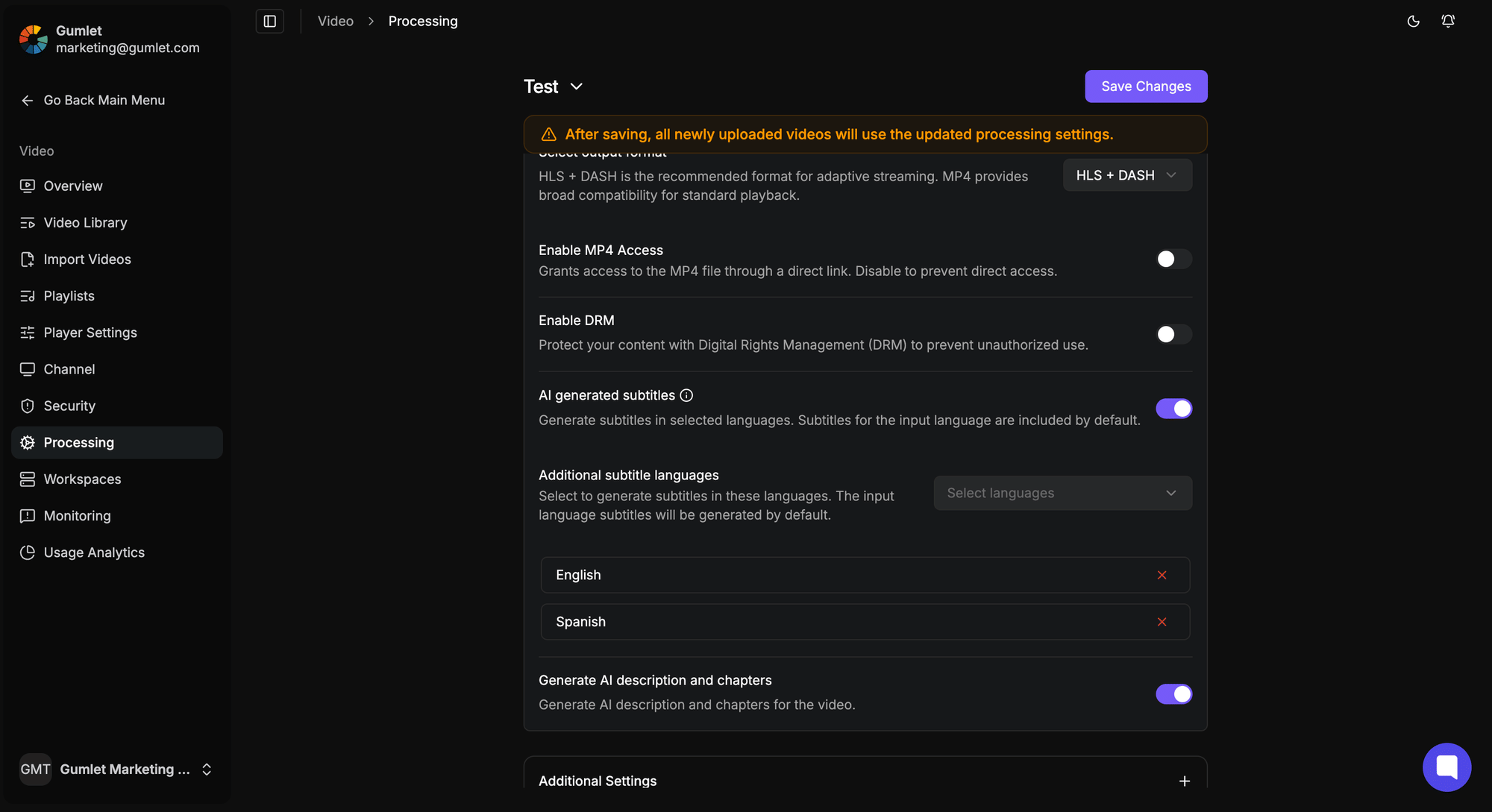
DRM blocks screen recording tools from accessing or extracting your videos. It ensures that only authorized viewers can access your content in a secure environment.
2. Use Video Watermarking
Adding dynamic watermarking to your videos is a great way to discourage screen recording.
Watermarking can deter users from recording or sharing videos. If someone records your video, the watermark will appear on the recorded content, making it easier to trace the source.
- Dynamic Watermarking: In some cases, you can use dynamic watermarks that include information like the viewer's username, IP address, or timestamp. This can act as a deterrent because if someone records and shares the video, they can be traced back to the original viewer.
- Visible Watermark: A visible watermark can be placed in the corner or center of the video, making it less likely for someone to share or reuse the video without it being obvious.
Here's how to add dynamic watermarking with Gumlet:
3. Restrict Screen Recording with Web Technologies (for Streaming)
If you're distributing videos via a web-based platform, you can make use of certain technologies to disable screen recording:
- Browser-level protection comes from Encrypted Media Extensions (EME), the standard that lets a DRM system decrypt video inside a protected path instead of exposing it to the page. Tricks like disabling developer tools or right-click do not stop capture; they only inconvenience honest viewers. If your protection depends on JavaScript, it is not protection.
4. Use Secure Video Delivery Platforms
Gumlet is a secure video hosting platform used by course creators, fitness businesses, and media companies to deliver DRM-protected, watermarked video without engineering work. If you're sharing videos with sensitive content, these are the protection layers it adds:
Gumlet provides secure video hosting with features aimed at protecting your videos from unauthorized access and distribution. Below are some of the key features that Gumlet offers for secure video delivery:
- Password Protection: Set passwords for video access.
- Domain-Level Privacy: Restrict embedding to specific domains.
- Video Encryption: Secure your videos during storage and transfer.
- Customizable Privacy Settings: Control who can view or access the videos.
- Watermarking: Add watermarks to deter unauthorized recording.
- Secure Streaming: Encrypt video streams to prevent interception.
- Access Control & Expiry Dates: Limit video availability and control access duration.
5. Disable Right-Click and Download Options on Video Players
If you're hosting videos on your website, you can disable right-click actions or the ability to download videos directly from the player. This can help reduce the chances of someone downloading your video and then recording it.
- Disabling Download Links: Most video hosting platforms (e.g., YouTube) allow you to disable the download option, but this does not stop users from recording what they see on their screens.
If your real problem is people downloading files instead of recording the screen, that is a different fight with different tools; see our guide on how to prevent users from downloading your videos.
6. Know Which Devices Actually Block Capture
Device restrictions work in the opposite direction to what most people assume. Phones and tablets are the hardest devices to record because Widevine L1 and FairPlay enforce protection in hardware. The weak point is the desktop browser, where Widevine runs in software (L3). If your audience watches on desktop Chrome, plan for watermark-based traceability instead of expecting a black screen.
7. Block Capture Inside Native Apps
Native mobile apps can genuinely block capture using anti-capture SDKs (FLAG_SECURE on Android, capture detection on iOS). In the browser, capture detection is unreliable: JavaScript cannot see OS-level recorders, so treat browser-side detection claims from any vendor with suspicion.
8. Control Access with Logins, Signed URLs, and Expiry
Gumlet offers features to control access to videos effectively:
- Access Control: You can restrict video access by requiring users to log in before viewing the content. This ensures that only authorized users can watch your videos.
- Session Expiry: You can set expiration dates for video access. Once the session expires, users can no longer view or access the video, preventing ongoing access after a set period.
These features in Gumlet allow you to manage and control who can access your videos, ensuring more secure distribution. To stop a viewer from keeping access indefinitely, set an expiration date for the video; after that date, it can no longer be opened. This is standard practice for paid courses and subscription libraries.
9. Educate Viewers and Users
Although this is not a technological solution, educating your viewers on the legal and ethical implications of screen recording and sharing videos can be an effective deterrent. Inform your audience that the content is copyrighted and recording or distributing it without permission is illegal.
Which Video Hosting Platforms Actually Block Screen Recording
No platform blocks screen recording everywhere, whatever the sales page says. The honest question is which platforms deliver hardware-backed DRM plus viewer-specific watermarking, because that combination blocks capture on phones, tablets, and Safari, and makes every desktop recording traceable.
| Platform | DRM offered | Note |
|---|---|---|
| Gumlet | Widevine + FairPlay multi-DRM, dashboard setup | Dynamic viewer-specific watermarking included |
| VdoCipher | Widevine + FairPlay | Dynamic watermarking, focused on paid courses |
| Mux | Widevine, FairPlay, and PlayReady | Developer-first; you build the player experience |
| Vimeo | DRM available on Enterprise contracts only | Not on Starter or Standard plans |
| Bunny Stream | Widevine + FairPlay via its MediaCage Enterprise DRM tier | Basic tier uses clear-key encryption, not hardware DRM |
| Wistia | No DRM on any self-service plan | Marketing video host, not built for content protection |
For the full device-by-device breakdown of all seven platforms, see our comparison of video hosting platforms ranked on screen-recording protection.
Before you buy, do four things: ask the vendor for a device and browser protection matrix in writing, confirm dynamic watermarking is included in your plan and not sold as an add-on, test a capture attempt yourself on the exact device your audience uses, and check the current DRM pricing model, not last year's.
Course creators comparing platforms for an LMS setup should weigh DRM alongside LMS embedding; our roundup of the best DRM video hosting platforms for online courses covers that angle.
Final Thoughts
Nowadays, as a fitness creator or course creator, protecting your videos from screen recording is no longer optional—it’s essential. By implementing DRM, dynamic watermarking, and device restrictions, you can stop screen recording and ensure your content stays secure. Combine these protections with strong viewer education, and you’ll have a solid defense against piracy.
Try Secure Video Hosting with Gumlet
If you’re serious about protecting your videos, start with a platform like Gumlet. It provides DRM protection, watermarking, and much more to keep your workout videos safe from piracy.
FAQs
1. How can I stop screen recording on my videos?
To stop screen recording on your videos, you should use DRM (Digital Rights Management) technology, which encrypts your content, blocks capture on hardware-DRM devices, and keeps recordings traceable everywhere else. Platforms like Gumlet offer built-in DRM encryption, making it difficult for anyone to capture your videos using screen recording tools. You can also add dynamic watermarking to identify the source of any pirated content.
2. Can I prevent screen recording on Mac devices?
Partly. Viewers on macOS using Safari get Apple's FairPlay DRM, so capture attempts on FairPlay-protected video produce a blank recording. Viewers using Chrome on a Mac fall back to software DRM, where capture is possible, which is why you pair DRM with dynamic watermarking.
3. Can I stop viewers from screen recording on iPhone?
Yes, largely. iPhones enforce FairPlay in hardware, so DRM-protected playback returns a black screen to the built-in iOS recorder. Mobile is the best-protected environment for premium video.
4. Is it possible to stop screen recording on a Chromebook?
Chromebook viewers watch in Chrome, which uses software-based Widevine L3 for browser playback. DRM still encrypts the stream and blocks downloads, but capture is not blocked at the hardware level, so viewer-specific watermarks carry the protection there.
5. What’s the best way to block screen recording on my workout videos?
The best way to block screen recording on workout videos is by using a secure video hosting platform that offers DRM encryption, dynamic watermarking, and signed URLs. These features make it much harder for users to record or share your videos without authorization. Platforms like Gumlet are excellent choices for this level of protection.
6. Does DRM prevent screen recording completely?
While DRM encryption significantly reduces the chances of screen recording, no solution can offer 100% protection. However, DRM combined with other measures like dynamic watermarking, geo-blocking, and signed URLs provides the highest level of security to prevent screen recording and unauthorized sharing of your videos.
7. Are there any free tools to block screen recording on my videos?
While there are free tools available to block screen recording, they typically offer limited functionality. For comprehensive protection, it’s best to use secure video hosting platforms like Gumlet that provide DRM encryption and watermarking as part of their service. Many of these platforms offer affordable pricing, and some even provide free trials to test their features.